by
by In this tutorial, I go through the steps of setting up n8n on the Raspberry Pi.
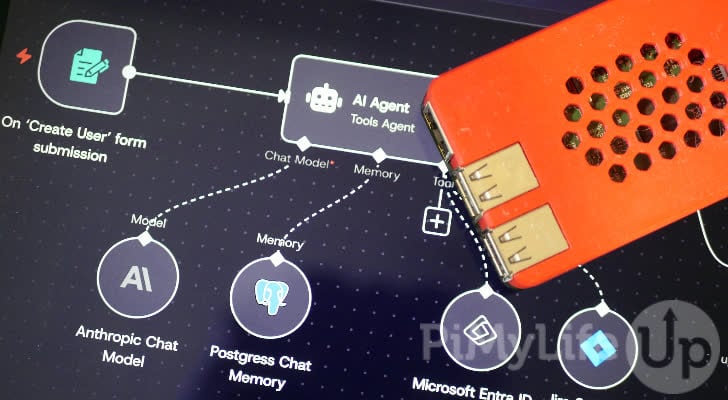
n8n is a self-hosted workflow automation tool. You build each workflow by connecting nodes on a canvas, where each node fetches some data, changes it, or sends it somewhere else. With hundreds of built-in integrations, it is often compared to services like Zapier and Make.
For example, you can have n8n check the weather every morning, watch an RSS feed for new posts, or take a webhook from one app and pass the details on to another. Running it on your Raspberry Pi keeps your workflows and credentials on your own hardware, with no limit on how often they run.
n8n describes itself as “fair-code” rather than open source. It is free to self-host under n8n’s Sustainable Use License, which allows personal use and use within your own business, but does not let you sell n8n to others as a service. This license is not an OSI-approved open-source license.
n8n only provides Docker images for 64-bit systems, so you will need a Raspberry Pi 3 or newer running the 64-bit version of Raspberry Pi OS. As n8n is a fairly large application, I recommend using a Raspberry Pi 4 or 5 with at least 2GB of RAM.
If you are after a lighter, flow-based automation tool, we also have a guide on installing Node-RED on the Raspberry Pi.
Before starting this tutorial, you must have Docker installed on your Raspberry Pi. If you do not have Docker set up, I recommend you follow our tutorial on installing Docker on the Raspberry Pi.
Equipment
Below is a list of equipment we used for this tutorial.
Recommended
Optional
This tutorial was last tested on a Raspberry Pi 5 running the latest version of Raspberry Pi OS Trixie.
Preparing your Raspberry Pi for n8n
Before installing n8n, make sure your Raspberry Pi is up to date and has Docker installed. We will then create a directory for n8n’s Compose file and data.
1. Before we get started, first make sure all your packages are up to date by running the following two commands.
sudo apt update
sudo apt upgradeCopy
If the second command asks whether you want to continue, type Y and press ENTER.
2. You must have Docker installed on your Raspberry Pi to follow this guide. You can check whether Docker is installed by running the following command.
docker --versionCopyIf Docker is installed, you should see something similar to the example below.
Docker version 29.9.1, build dfc520dCopy3. Next, we will use the mkdir command to create a directory for n8n. We recommend keeping it within the /opt/stacks/ directory, especially if you also plan on using Dockge.
sudo mkdir -p /opt/stacks/n8n/dataCopyThe -p option creates the n8n directory and the data directory inside it in one go. The data directory is where n8n will store your workflows, credentials, and settings.
4. The n8n container does not run as the root user. Instead, it runs as a user called “node” with the ID 1000, so this user must own the “data” directory. Run the following chown command to give ownership of the directory to it.
sudo chown 1000:1000 /opt/stacks/n8n/dataCopyIf you skip this step, n8n cannot save its files. It will keep restarting, and its logs will show the error “EACCES: permission denied, open ‘/home/node/.n8n/config‘”.
5. Now, change into the directory we just created by using the following command.
cd /opt/stacks/n8nCopyAll the commands in the next section are run from this directory.
6. Lastly, you will need your Raspberry Pi’s local IP address for the next section. Use the hostname command to get it.
hostname -ICopyYou should see something similar to the example below. Your IP address is the first one listed. The second address belongs to Docker’s own network.
192.168.0.143 172.17.0.1CopySince n8n will use this address in its links, I recommend setting a static IP address so that it does not change.
Installing n8n on the Raspberry Pi
With the directory ready, we can write the Compose file that tells Docker how to run n8n, then start it.
1. Begin writing the Compose file by using the nano text editor.
sudo nano compose.yamlCopy2. Within this file, enter the following lines. They are based on n8n’s Docker documentation.
services:
  n8n:
    image: n8nio/n8n
    container_name: n8n
    restart: unless-stopped
    ports:
      - 5678:5678
    environment:
      - GENERIC_TIMEZONE=<TIMEZONE>
      - TZ=<TIMEZONE>
      - N8N_WEBHOOK_URL=http://<IPADDRESS>:5678/
      - N8N_SECURE_COOKIE=false
      - N8N_DIAGNOSTICS_ENABLED=false
      - N8N_ENFORCE_SETTINGS_FILE_PERMISSIONS=true
    volumes:
      - ./data:/home/node/.n8nCopy
While typing this file, you must replace a few details with your own.
<TIMEZONE>: Replace both of these with your time zone, such asAustralia/HobartorEurope/London. You can find the value for your area in the list of tz database time zones.<IPADDRESS>: Replace this placeholder with the IP address of your Raspberry Pi that you got at the end of the previous section. For example, ours would behttp://192.168.0.143:5678/.
n8n Compose File Settings
Below, we quickly explain each setting in the compose file.
We first tell Docker to use n8n’s official image and to make its web interface available on port 5678. Docker will also start n8n again if it crashes or your Raspberry Pi reboots, unless you stopped it yourself.
Time Zone
The GENERIC_TIMEZONE variable sets the time zone that n8n uses for scheduled workflows, while TZ sets the clock inside the container. Setting both to the same value means a workflow set for 7 am runs at 7 am your time.
Webhook URL
The N8N_WEBHOOK_URL variable tells n8n the address it can be reached at. n8n uses it when it shows you the address of a webhook or form. Without it, these addresses start with http://localhost:5678, which only works locally on the Raspberry Pi itself.
Secure Cookie & HTTPS
By default, n8n only lets you sign in over a secure HTTPS connection or from localhost. If you open it at your Pi’s IP address over plain HTTP, you will see a warning about a secure cookie instead of the sign-in page. Setting N8N_SECURE_COOKIE to false lets you sign in over HTTP on your home network. The trade-off is that your password and login cookie travel unencrypted across your network, so don’t use this setting on a network you don’t trust.
If you would rather sign in over HTTPS, you can put n8n behind NGINX Proxy Manager, Pangolin, or a Cloudflare Tunnel.
Once n8n is behind HTTPS, remove the N8N_SECURE_COOKIE line and change N8N_WEBHOOK_URL to your new HTTPS address.
Diagnostics
The N8N_DIAGNOSTICS_ENABLED line stops n8n from sending usage data back to n8n. By default, it reports details such as your n8n version, which nodes your workflows use, error messages, and the domain names your workflows connect to. It does not send the data that passes through your workflows or your credentials.
File Permissions
The N8N_ENFORCE_SETTINGS_FILE_PERMISSIONS line makes sure only the n8n user can read the file holding n8n’s encryption key. n8n uses this key to encrypt any passwords and API keys you save in it.
Volumes
Lastly, the volume keeps everything n8n saves in the data directory, right next to this file. Because it lives outside the container, your workflows are kept when you update n8n. It is also the directory to back up.
Docker opens port 5678 itself, so n8n is reachable from your network even if you have set up a firewall such as UFW on your Raspberry Pi. Do not forward this port on your router.
3. Once done, save and quit by pressing CTRL + X, then Y, followed by ENTER.
Starting the n8n Docker
4. You can now start n8n by running the following command. The first time you run this, Docker will download the n8n image, which is quite large, so it may take several minutes.
docker compose up -dCopyThe -d option tells Docker to run n8n in the background.
5. To check that n8n is running, use the following command.
docker compose psCopyYou should see something similar to the example below. The status should start with Up and not keep resetting every few seconds.
NAME      IMAGE       COMMAND                  SERVICE   CREATED         STATUS         PORTS
n8n       n8nio/n8n   "tini -- /docker-ent…"   n8n       9 seconds ago   Up 9 seconds   0.0.0.0:5678->5678/tcp, [::]:5678->5678/tcpCopy
The first time it starts, n8n sets up its database, so give it a minute before moving on.
Setting up n8n on the Raspberry Pi
With n8n running, open its web interface and create the account you will sign in with.
1. In a web browser on any device on your network, go to the following address.
http://<IPADDRESS>:5678CopyRemember to replace <IPADDRESS> with the IP address of your Raspberry Pi. In my case, I would go to http://192.168.0.143:5678.
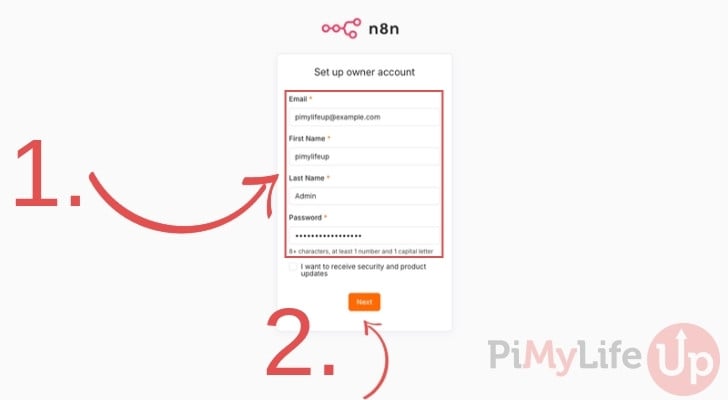
2. You will now be asked to set up the owner account. This account only exists on your Raspberry Pi, and you will use its email address and password to sign in.
Fill in your email address, first name, last name, and a password (1.). I recommend using a secure password generated by a password manager.
Ticking “I want to receive security and product updates” asks n8n to email you their news. It is optional, and we left it unticked.
Once you are done, click the “Next” button (2.).
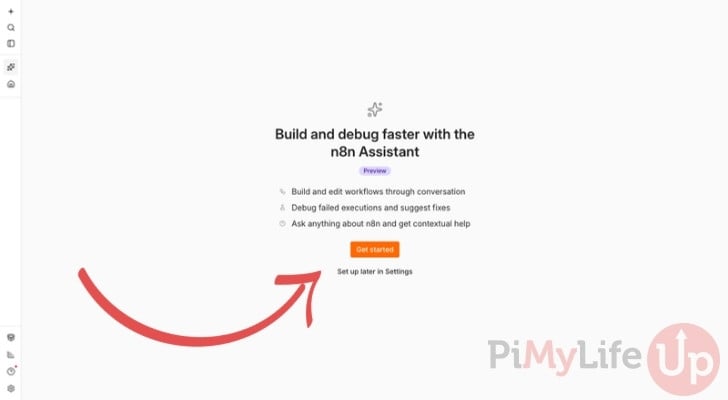
3. n8n will now offer to set up the n8n Assistant, an AI helper that can build and fix workflows for you. It needs an API key from an AI provider, which usually means a paid account, so we will skip it for now.
Click “Set up later in Settings” (1.) to continue.
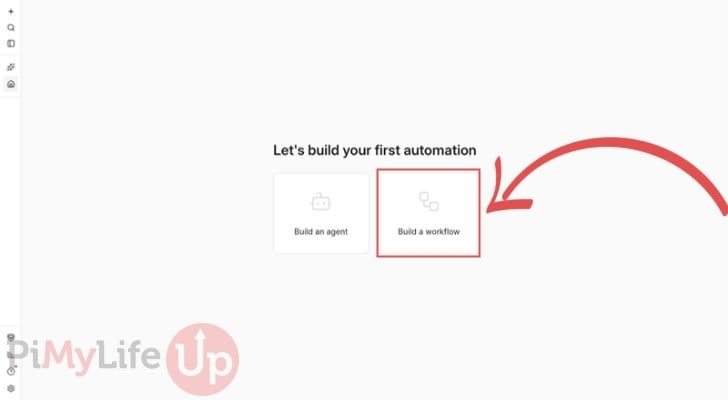
4. You should now see the “Let’s build your first automation” screen. Click “Build a workflow” (1.) to open an empty workflow, which we will fill in over the next section.
n8n also offers a free license key that enables a few extra features, such as workflow folders. To get one, send your email address to n8n, but this guide doesn’t require it. If you want one later, go to “Settings” in the bottom left corner and select “Usage and plan“.
You also do not need an n8n Cloud account. That is n8n’s paid hosted service, and everything in this guide runs on your Raspberry Pi.
Creating your First Workflow in n8n
To show you how n8n works, we will build a small workflow that fetches the current weather every morning. It uses Open-Meteo, a free weather service that doesn’t require an account or API key.
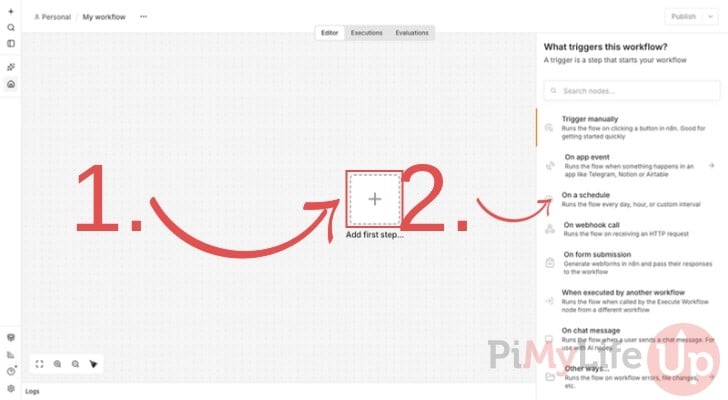
1. On the empty canvas, click the “Add first step…” button (1.) in the middle of the screen. A panel will open on the right side, asking what should start your workflow.
Select “On a schedule” (2.).
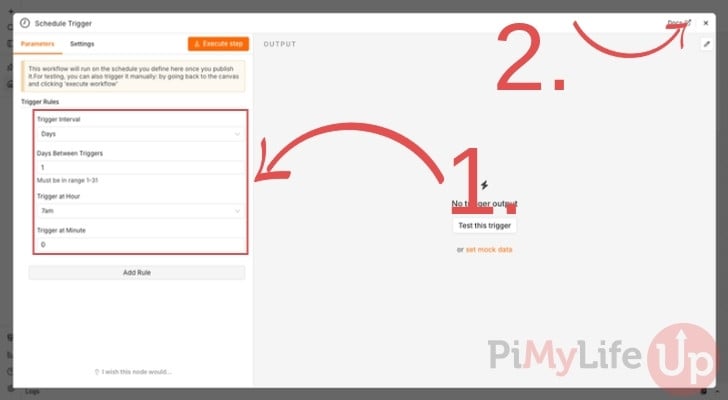
2. You will now see the settings for the Schedule Trigger. Leave “Trigger Interval” set to “Days” and “Days Between Triggers” set to 1, then change “Trigger at Hour” to “7 am” (1.).
This tells n8n to run the workflow once a day at 7 am, in the time zone we set in the Compose file. Once you are happy with the schedule, click the X in the top-right corner (2.) to return to the canvas.
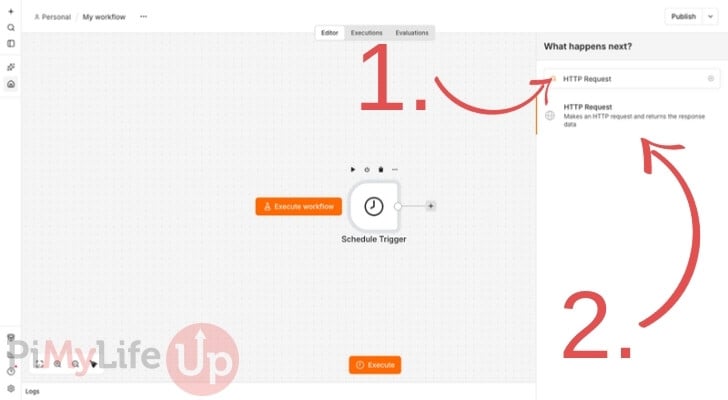
3. To add the next step, click the small plus button to the right of the “Schedule Trigger” node.
In the “What happens next?” panel that opens on the right, type HTTP Request into the search box (1.), then click the “HTTP Request” node (2.).
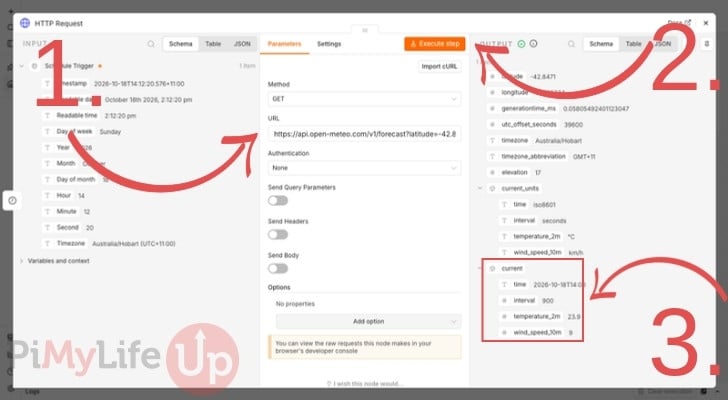
4. In the “URL” field (1.), enter the following address. This requests the current temperature and wind speed at your location from Open-Meteo.
https://api.open-meteo.com/v1/forecast?latitude=<LATITUDE>&longitude=<LONGITUDE>¤t=temperature_2m,wind_speed_10m&timezone=autoCopyReplace <LATITUDE> and <LONGITUDE> with the coordinates of your town. For example, we used -42.88 and 147.33 for Hobart.
Leave the “Method” set to “GET“, then click the “Execute step” button (2.) to test the node.
After a second or two, the “OUTPUT” panel on the right should fill with the weather data (3.). Under “current“, you will find the current temperature and wind speed.
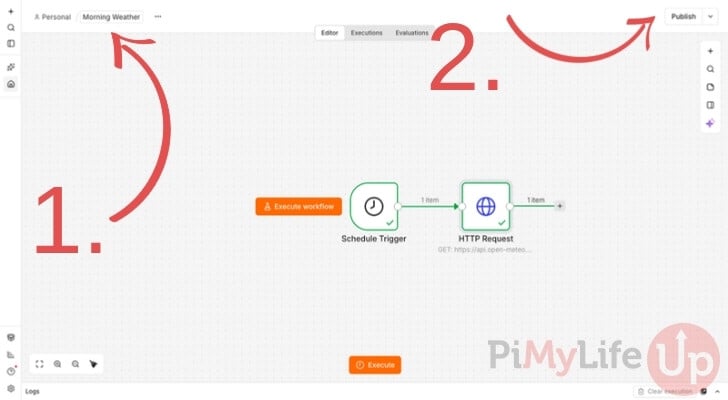
5. Click the X in the top right corner to go back to the canvas. Your workflow now has two nodes joined by a line.
Before publishing it, give your workflow a name. Click on “My workflow” at the top of the screen (1.), type in a name such as Morning Weather, and press ENTER.
Then, click the “Publish” button (2.) in the top right corner.
6. In the “Publish workflow” pop-up, you can keep the version name n8n fills in for you. Click “Publish“.
n8n will let you know that your schedule trigger will now run the workflow on the schedule you set. Click “Got it”. You can also close the “Production Checklist” that appears, as none of its items are needed for this guide.
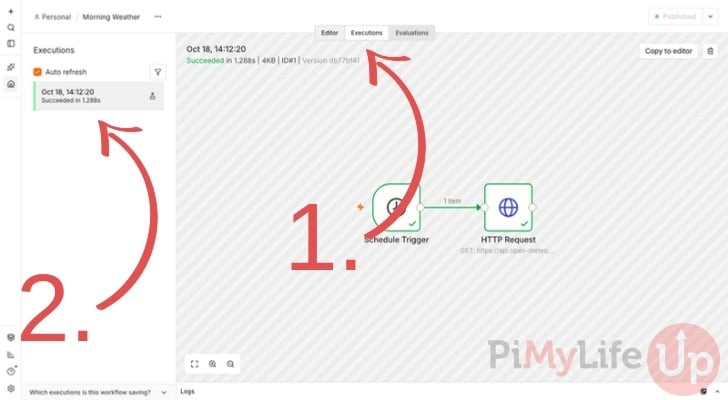
7. You can see every time your workflow has run by clicking the “Executions” tab (1.) at the top of the screen.
Each run is listed on the left side (2.). Clicking one shows you the data each node received and sent during that run. The run with the flask icon is the test we did in step 4. From tomorrow morning, you will see a new run at 7 am each day.
Right now, our workflow only fetches the weather. From here, you can add more nodes to do something with it, such as sending it to you through Telegram, Discord, or email. Each service needs its own account, which n8n will ask you to connect as a credential.
Updating n8n on the Raspberry Pi
Since we used n8n’s Docker setup, updating to a new release takes only a few commands. n8n releases updates often, so it is worth doing this regularly.
1. First, change to the directory where we set up n8n.
cd /opt/stacks/n8nCopy2. Next, use Docker to download the latest version of the n8n image.
docker compose pullCopy3. Lastly, run the following command. Docker will notice the new image and restart n8n using it.
docker compose up -dCopyWhen a new version starts for the first time, n8n updates its database, so give it a minute before opening the web interface. Your workflows, credentials, and account are kept, as they are stored in the “data” directory.
I don’t recommend updating n8n automatically with a tool like Watchtower, since a new version can include breaking changes you will want to read about first. Before moving to a new major version, such as from 2.x to 3.x, I recommend reading n8n’s release notes.
Conclusion
Hopefully, by now you have successfully set up n8n on your Raspberry Pi and built your first workflow.
n8n is a handy way to automate small jobs that pile up, without sending your data outside your home network. If you want to access it while you are away from home, I recommend using Tailscale rather than port forwarding.
We have plenty more Raspberry Pi projects that I highly recommend checking out. If you have any feedback or tips, or if there is something I have missed, please leave a comment below.