by
by In this quick guide, we will show you how to install the LGPIO library on your Raspberry Pi by compiling it from source.
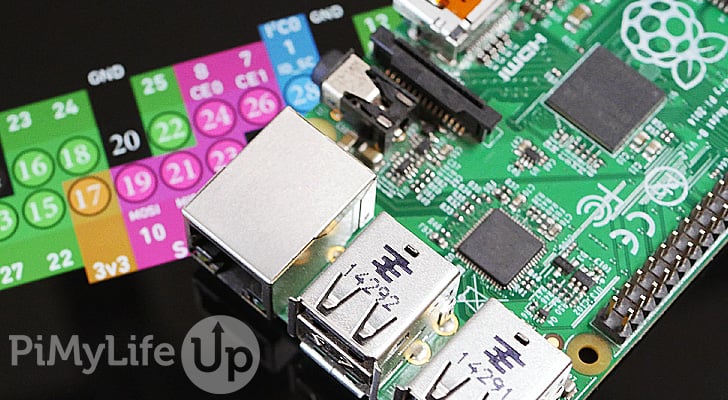
The LGPIO library is a popular C library that helps Linux computers communicate with GPIO pins like those on your Raspberry Pi. It has many features that have made it a popular choice for those who want to interact with devices via these pins.
Some popular Python libraries, such as Adafruit’s DHT Python library, depend on this library to operate. If you don’t have this software installed, you may not be able to even install those libraries, which will make it significantly harder to talk with hardware from your Raspberry Pi.
With the somewhat recent release of Raspberry Pi OS Trixie, the reliance on this library has become even more obvious, as it is not readily available. With this library missing, you might run into errors such as “Failed building wheel for lgpio” or “/usr/bin/ld: cannot find -llgpio: No such file or directory“
This guide walks you through the simple steps to compile and install the LGPIO library on your Raspberry Pi.



Equipment
Below is a list of the equipment we used to compile and install the LGPIO library on our Pi.
Recommended
Optional
This tutorial was last tested on a Raspberry Pi 5 running the latest version of Raspberry Pi OS Trixie (64-bit).
Compiling and Installing the LGPIO Library on the Raspberry Pi
As mentioned earlier, the LGPIO library is a critical dependency for many incredibly useful Python libraries. If you deal with any GPIO functionality from your Pi, there is a good chance you have had to rely on this library before.
These next few steps show you how to easily download, compile, and install the LGPIO library on your Raspberry Pi. This whole process is relatively easy, even for those who are new to Linux and using the terminal.
If you are using this on a desktop variant of Raspberry Pi OS, you can always bring up the terminal by pressing CTRL + ALT + T.
Preparing your Raspberry Pi
1. Now, before we can download, compile, and install the LGPIO library on our Raspberry Pi, we need to complete a few tasks.
The first task is to ensure we have an updated operating system to work with by running the following two commands in the terminal. The first command updates the package list cache, and the second updates any out-of-date packages it detects from that cache.
sudo apt update
sudo apt upgrade -yCopy
2. With our Raspberry Pi now updated, we must ensure that we have all the tools needed to compile the library.
Luckily, thanks to the “apt” package manager, installing all the tools we need is as simple as using the following command in the terminal.
sudo apt install unzip wget swig build-essential python3-dev python3-setuptoolsCopyDownloading, Compiling, and Installing the LGPIO Library
3. Before we get too far ahead of ourselves, let us ensure that we won’t run into any issues later by changing into our current user’s home directory. This step is mainly here to prevent you from trying to download the code into a random place.
Changing to this directory can be done simply by typing in the cd command followed by the tilde symbol (~).
cd ~Copy4. Once we have all our tools in place and our system is updated, we can move on to downloading, compiling, and installing the LGPIO library onto our Raspberry Pi.
The first part of this process is to download the latest version of the library code directly from their GitHub by using the command below.
wget https://github.com/joan2937/lg/archive/master.zipCopy5. Once downloaded, we will next need to use the “unzip” command to extract the contents of the archive and gain access to the LGPIO code.
This command will simply extract the entire contents of the archive to the current directory.
unzip master.zipCopy6. We have successfully got the LGPIO code onto our Raspberry Pi, but before we can compile it, we will need to change into the directory that was just created by extracting the code archive.
You can swap to the right place by using the cd command followed by “lg-master“.
cd lg-masterCopy7. All the hard work has actually been done by this code already; all we need to do is utilize a simple command to compile the LGPIO library onto our Raspberry Pi.
Getting our Pi to compile this is as straightforward as using the command below. The compilation process shouldn’t take very long, especially if you are using a newer Raspberry Pi.
makeCopy8. Even though the library might be compiled, it isn’t yet actually installed onto our Raspberry Pi. Luckily, getting the LGPIO library installed from our compiled copy is incredibly simple.
All you need to do to install this library now is to run the command below in the terminal.
sudo make installCopyCleaning up After the Install
9. With the library now installed, we no longer need all the archives we downloaded earlier and its safe to delete them to save on space.
Before we do some cleanup, change back to your home directory.
cd Copy10. The first part of this cleanup is to remove the archive from our Pi that contained the LGPIO code. Removing files is simple and can be done with the “rm” command.
rm master.zip11. Next, we can remove the folder we extracted from this archive by using the command below. Removing a folder is a little bit more complicated as it requires us to use both the “-r” (recursive) and “-f” (force) options.
rm -r -f ./lg-masterCopyConclusion
By this point in the guide, you should have hopefully downloaded, compiled, and installed the LGPIO library on your Raspberry Pi.
Since LGPIO is such a critical library for many Raspberry Pi libraries, being able to install it relatively easily is a must. While sometimes it might not be available properly through the package distribution, it is still pretty simple to compile and install it yourself.
Please feel free to leave a comment below if you have run into any issues installing the LGPIO library on your Pi.
If you found this tutorial to be helpful, we recommend checking out our many other Raspberry Pi projects.