by
by In this guide, we will show you how to install newer versions of Java on your Debian-based system.
Java is a powerful programming language that relies on the Java runtime to execute. This runtime takes Java code and converts it into something that your system can actually utilize.
There is a wealth of services that rely on Java to operate. This includes popular services such as the UniFi Network Controller and game servers for Minecraft and Hytale.
Many services rely on Java, and finding the right version on your Debian system can be a bit tricky, especially if that software needs a relatively new release or an older one.
If you don’t have the version of Java you need available on your system, you don’t have to worry too much, as there is an easy workaround that you can use.
The workaround is to use a third-party repository that provides Java builds. Thanks to the OpenJDK project, there are quite a few solid providers. The third-party Java repository we will show you how to use is Eclipse Temurin by Adoptium. This repository builds for any LTS release of Java, giving you access from Java 8 to Java 25 on your Debian system.
Best of all, once a repository has been set up, you will continue to get updates to Java as they are pushed by the repository maintainers.


Getting Newer Versions of Java on Linux Systems
The steps below walk you through adding the Adoptium repository to gain access to newer versions of Java. The Apdotium repository provides Java builds under the Temurin name and is available for both AMD64 and ARM64(AARCH64) systems.
These steps for installing newer versions of Java from Temurin are intended for Debian-like systems, such as Ubuntu. If your OS is derived from Debian, these should work for you.
Preparing your System
1. Before we can install the newer versions of Java onto our Linux system, we should ensure that the current operating system is up to date.
You can update and upgrade any out-of-date packages by using the following two commands.
sudo apt update
sudo apt upgrade -yCopy
2. Once the system has been updated, we must ensure that the wget package is installed on your system. We will use this in the next step to retrieve the GPG key for the Java repository we are adding to your system.
You can install this package by running the command below in the terminal.
sudo apt install wgetCopyAdding the Third-Party Java Package Repository on Debian
3. With the wget package installed, we can now save the GPG key for the Adoptium Temurin Java repository onto our Debian system by typing in the following command.
This GPG key is what helps your Debian system’s package manager verify that the Java packages provided by Adoptium are legitimate. It stops a bad actor from performing a man-in-the-middle attack in which they swap out the package for a dodgy, unsigned one.
sudo wget -qO - https://packages.adoptium.net/artifactory/api/gpg/key/public | gpg --dearmor | sudo tee /etc/apt/trusted.gpg.d/adoptium.gpg > /dev/nullCopy4. After adding the GPG key, we now add the third-party Java repository to our Debian system by running the command below.
This command is super simple and writes a string pointing to the new package repository to a file called “adoptium.list“. This file will be read in by the package manager next time we run an update.
echo "deb https://packages.adoptium.net/artifactory/deb $(lsb_release -cs) main" | sudo tee /etc/apt/sources.list.d/adoptium.listCopy5. For your Debian system to be aware of the new Java packages that can be installed, we need to update the package list cache.
You can update this cache by using the following command. During the update process, the APT package manager will read in the package list provided by Adoptium for their Temurin Java builds.
sudo apt updateCopyFinding the Available Versions of Java
6. With the new third-party Java package repository set up on our Debian system, you will probably want to know how you can check what versions of Java can be installed.
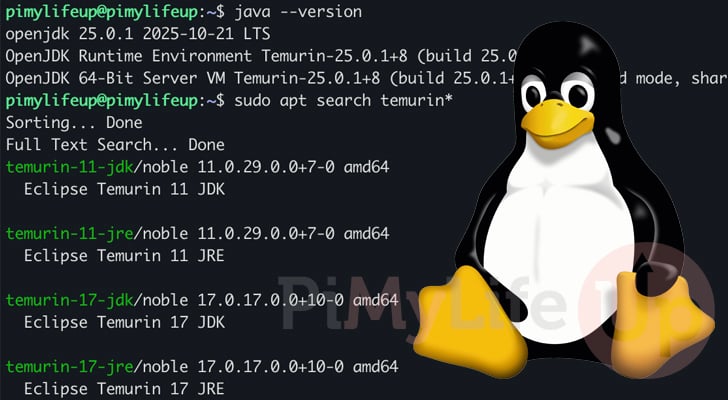
The easiest way to get a list of all these new Java versions is to run the command below. We use “temurin” as the search string as all of their Java builds start with this name. This is primarily done to prevent conflicts with existing versions of Java.
sudo apt search temurin*CopyAfter running the command above, you will get a list of the different versions of Java that you can install. For example, here is a small snippet from our own system.
temurin-25-jdk/noble 25.0.1.0.0+8-0 amd64
  Eclipse Temurin 25 JDK

temurin-25-jre/noble 25.0.1.0.0+8-0 amd64
  Eclipse Temurin 25 JRE

temurin-8-jdk/noble 8.0.472.0.0+8-0 amd64
  Eclipse Temurin 8 JDK

temurin-8-jre/noble 8.0.472.0.0+8-0 amd64
  Eclipse Temurin 8 JRE
Installing Java on Debian
7. To cap this guide off, let us now install version 25 of the Java development kit onto our Debian-based operating system by using the following command.
This process shouldn’t take very long to complete.
sudo apt install temurin-25-jdkCopyConclusion
If you have reached this stage of the tutorial, you should now hopefully have a good idea of how to install newer or older versions of Java on your Linux, Debian-based system.
Depending on the version, or flavor, of Debian that you are running, you may not have had access to the version of Java you require. Luckily, as you will have seen from within this guide, there is a fairly easy workaround that you can use by relying on a third-party package repository.
Utilizing this repository gives you access to any version of Java that you may require for your project on Debian. It also saves you from having to potentially upgrade
Please feel free to drop a comment below if you have any issues with this method of installing Java.
If you found this Linux guide helpful, we recommend taking some time to explore our other tutorials.