by
by In this quick guide, we will show you how you can easily check the model of Raspberry Pi that you are using from the terminal.
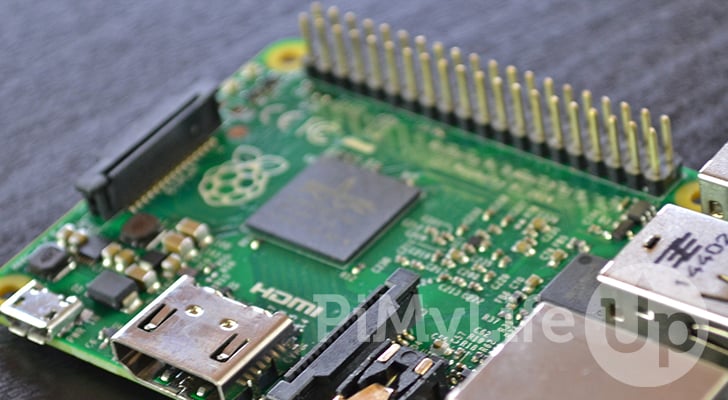
While checking what Raspberry Pi model you have is pretty easy if you have physical access to it, that isn’t always the case. If you have installed the Pi in a hard-to-reach position, you might need another way to check which model you are running.
This guide will explore one of the easiest methods for determining the exact Pi model you are running, without physically inspecting it.
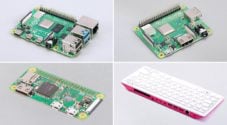
If you have physical access to your Pi, then you can simply look at the board to see what model you have. There is usually a clear indicator printed on each board, for example, the Raspberry Pi 5 has the text “Raspberry Pi 5“.
However, without physical access, you will need to use the terminal to read a value stored in the Pi’s firmware. This value \exposes the model of Raspberry Pi you are running as determined by the firmware. Luckily for us, the command we are using is super simple and should work on any copy of Raspberry Pi OS.
There are several reasons you may want to know which model you are running. For example, you might be trying to check what Pi you are using to determine how much software you could potentially run on it. A Raspberry Pi 3 can’t process as much as a newer model like the Pi 5.

Equipment
Below is a list of the parts we used when testing this guide on checking which Raspberry Pi model you are running in the terminal.
Recommended
Optional
This tutorial was last tested on a Raspberry Pi 4, 5, and 400 using the latest version of Raspberry Pi OS Trixie. However, these steps should work on older releases of the operating system without issue.
Using the Terminal to Get your Raspberry Pi Model
1. If you are following this guide from a desktop variant of Raspberry Pi OS, you will want to first open the terminal before continuing.
You can bring up the terminal easily by pressing CTRL + ALT + T on your keyboard.
2. With the terminal open on your Raspberry Pi, all you need to do to get the model you are running is to run the following command.
This command uses the cat command to output the contents of a file located at “/sys/firmware/devicetree/base/model“. This particular file just happens to contain the model of Pi that you are running.
To stop this line from looking messy when output, we will also use the “echo” command. By using the semicolon, we are able to run multiple commands with one prompt, including “echo ” after which ensures we push the command prompt onto a new line.
sudo cat /sys/firmware/devicetree/base/model;echoCopy3. If everything has worked correctly, you should see the model of your Raspberry Pi being output to he terminal.
After running this on our own Pi, we could see that we are using a Raspberry Pi 5 Model B, first revision.
Raspberry Pi 5 Model B Rev 1.0Conclusion
By this point in the guide, you should have an idea of how easily and quickly you can get your Raspberry Pi model directly from the terminal.
A single command can easily print out all of the information you should require, and even better is that it’s simple enough that even those who are unfamiliar with the terminal can easily use it.
Please feel free to drop a comment below if you have run into any issues with getting your model using this method.
With this guide now complete, we recommend taking some time to explore the many Raspberry Pi projects.